


Adding liquidity to a pool at the Osmosis Frontier
Now that you’ve deployed your tokens, you can use your stTokens in decentralized finance. One way to achieve this is to provide liquidity to decentralized exchange pools (DEX). In this tutorial we explain how to provide liquidity in Osmosis.
Click here for Osmosis’ comprehensive guide to providing liquidity.
For more background context and a Stride-specific tutorial, read on!
A brief overview of liquidity pools:
Liquidity is a measure of how easily one token can be exchanged for another token. A liquidity pool is a pool of digital tokens that enable trading on a decentralized exchange (DEX).
The main goal of liquidity pools is to enable peer-to-peer (P2P) trading on DEXs. By providing a steady supply of buyers and sellers, liquidity pools ensure trades can be executed quickly and efficiently.
Osmosis is the largest DEX in Cosmos and Stride’s main liquidity hub.
Basically, osmosis has two separate frontends.
App page:
→ Used for all on-board chains
→ contains a list of tokens registered in the Osmosis Assetlist Registry
Border:
→ Space for newly listed and unverified tokens
→ Multichain DEX is currently used for Cosmos-based tokens
→ Users can access liquidity pools, exchange tokens, and generate and earn incentives.
They look very similar – make sure you’re using the right front end depending on the type of token and pool you’re interested in.
App page:
Border:
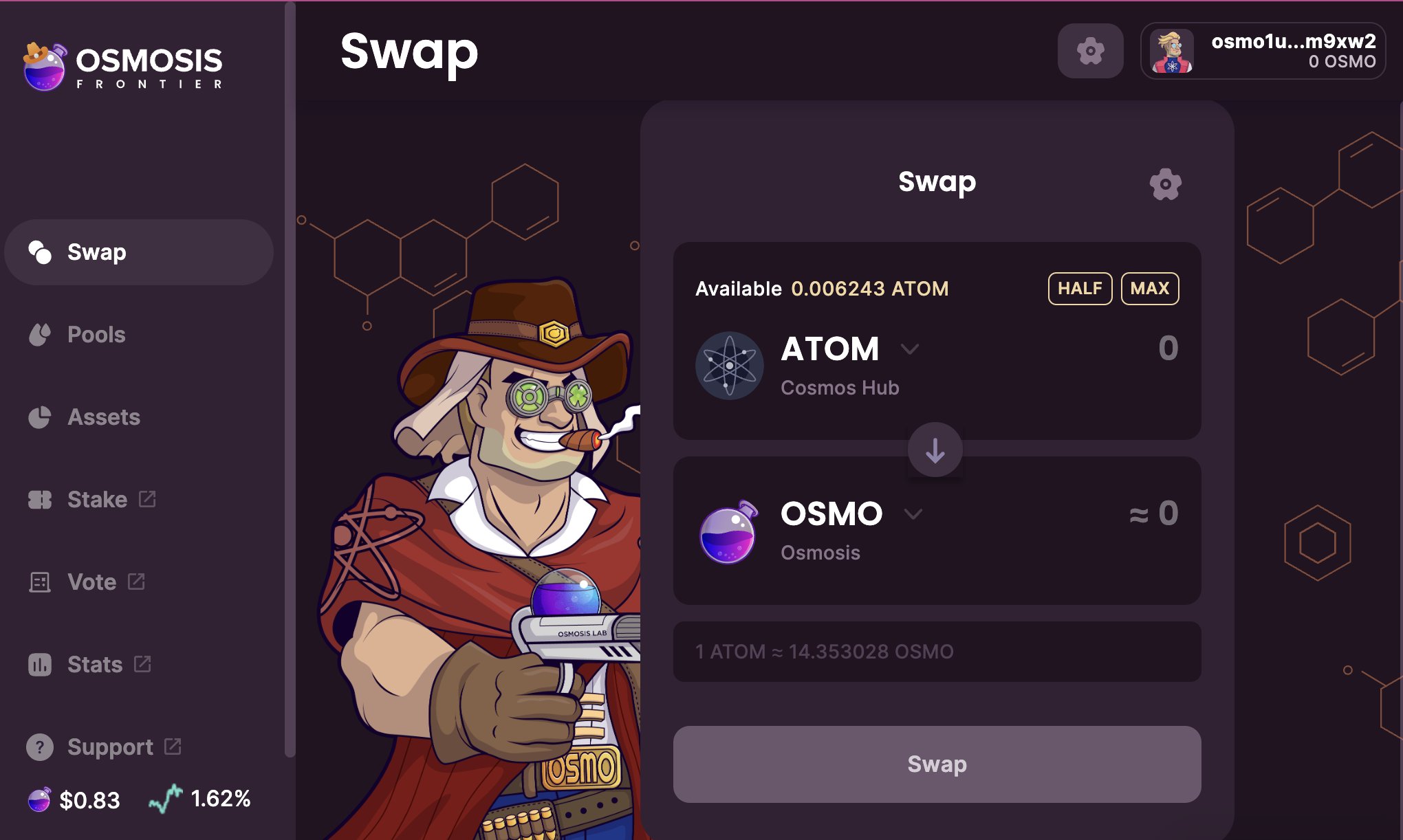
Osmosis uses inter-blockchain communication (IBC). IBC enables trusted interchain transactions in the Cosmos ecosystem.
Once connected, you can make a deposit to the platform directly from your wallet (we use Keplr here). Once the funds have been successfully deposited, you can approve transactions and add liquidity to the incentive pools.
Use your stToken balance (stATOM in this example) to join the pool:
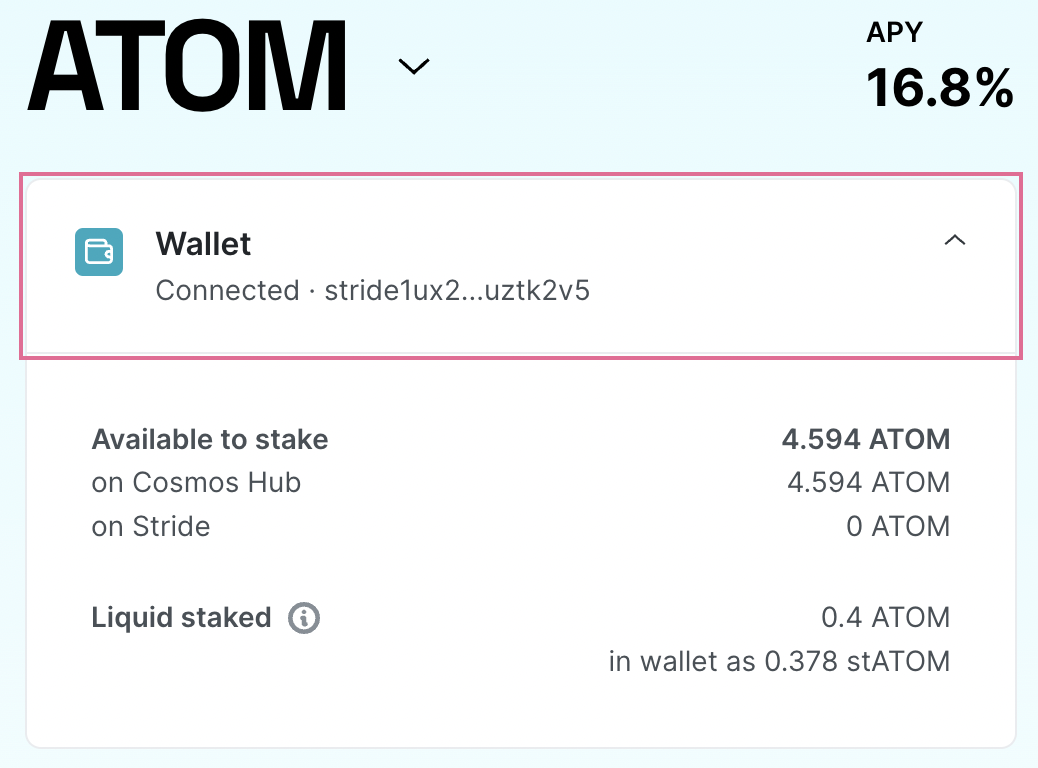
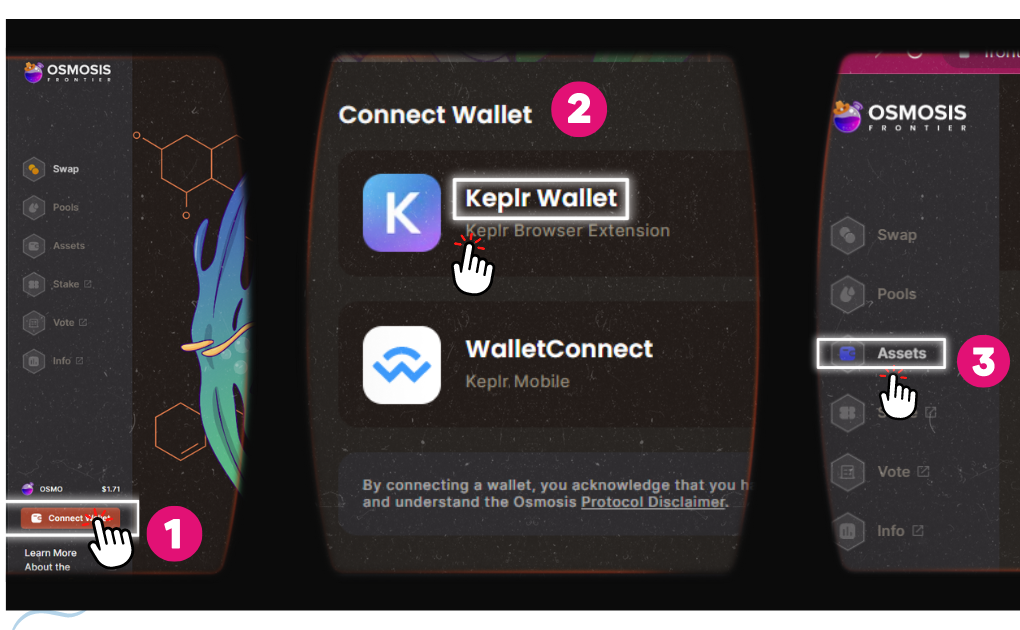
- Go to https://frontier.osmosis.zone/ and click “Connect Wallet” in the left sidebar.
- Options for the wallet types to connect will appear. Select the appropriate one and enter your password. For this example we connect a Keplr Wallet.
- Once the wallet is connected, click on “Assets” in the left sidebar.
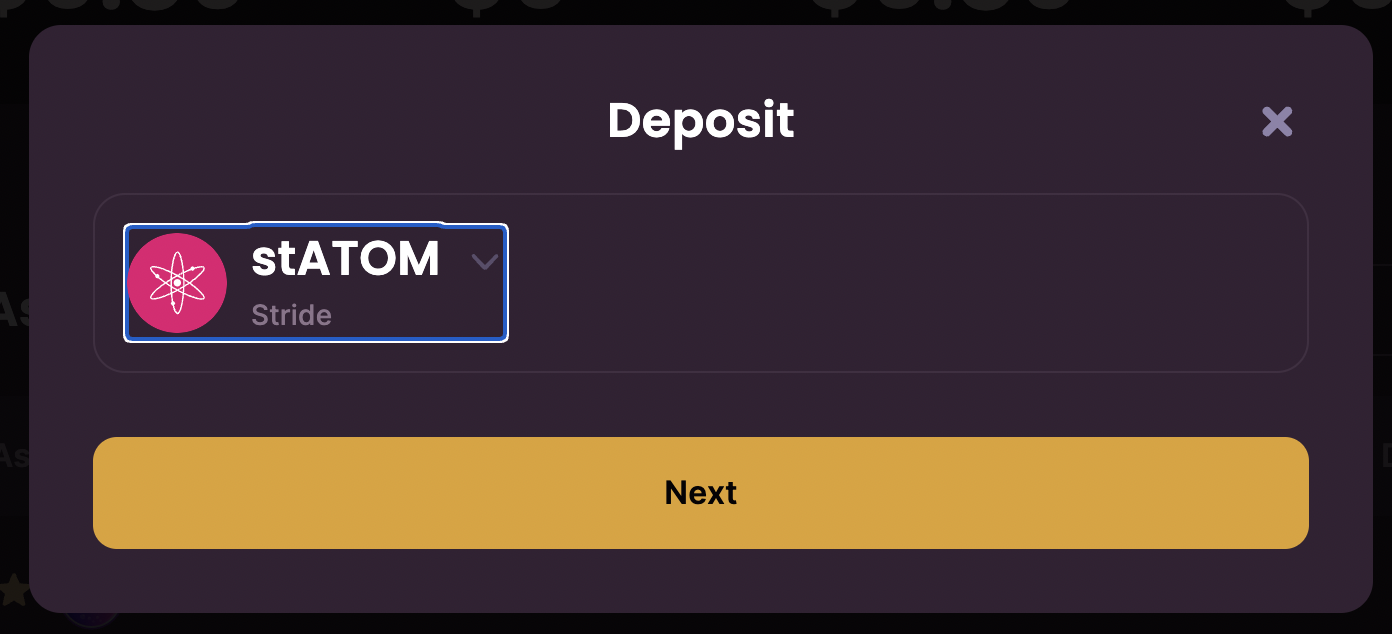
- In the “Search” bar below ‘Financial assets’ Type STATOME and click “Deposit’.
- Enter the amount you wish to deposit. You can also click ‘Balance’.
- Select “Deposit” and then approve the transaction (wait for the “transaction confirmation’).
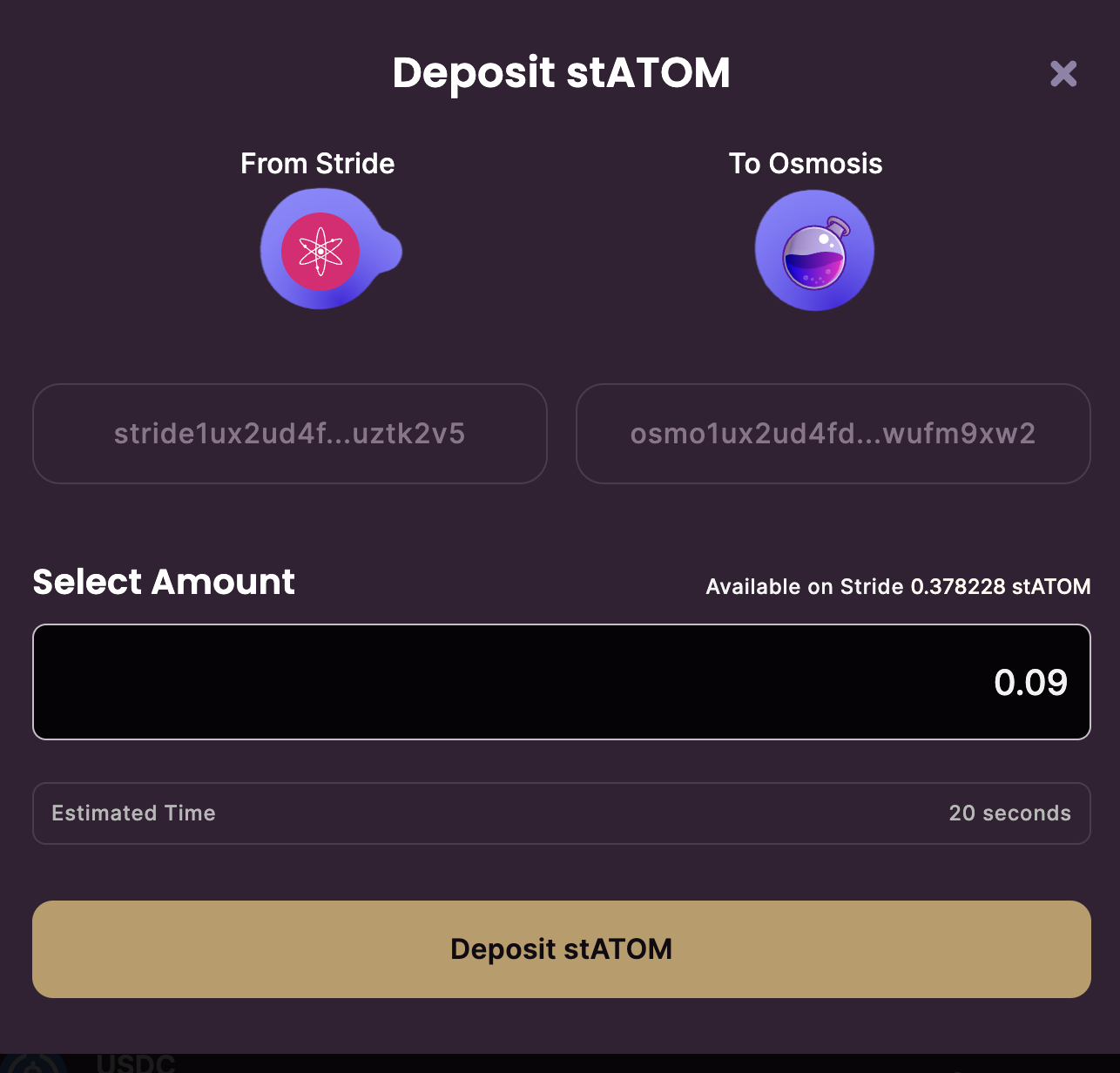
After completing the deposit you can now add your available balance to the pool. Check which pools are eligible for incentives at https://frontier.osmosis.zone/pools to see how you can earn rewards.
Note: Each pool has a pool ID number.
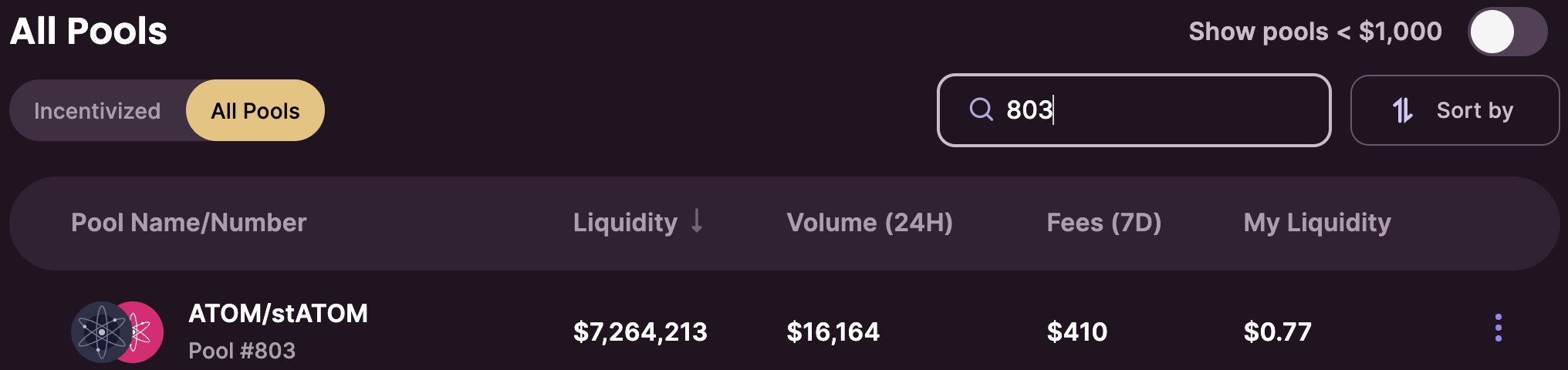
→ For example, stATOM uses the pool ID #803
- From the osmosis dashboard, click ‘pool’ in the left sidebar. Make sure your pool is incentivized by checking Incentive Pools. (Note: Some pools have external incentives. This means they can be viewed when All Pools is enabled as shown here, and will appear in the External Incentives list further down the page.)
- For example, search for a token STATOME or 803 in the search bar. Select the one you need liquidity on. You’ll see the pool’s total liquidity, volume, fees and APR.*
After selecting the pool, click “ADD/REMOVE LIQUIDITY‘ at the top of the page.
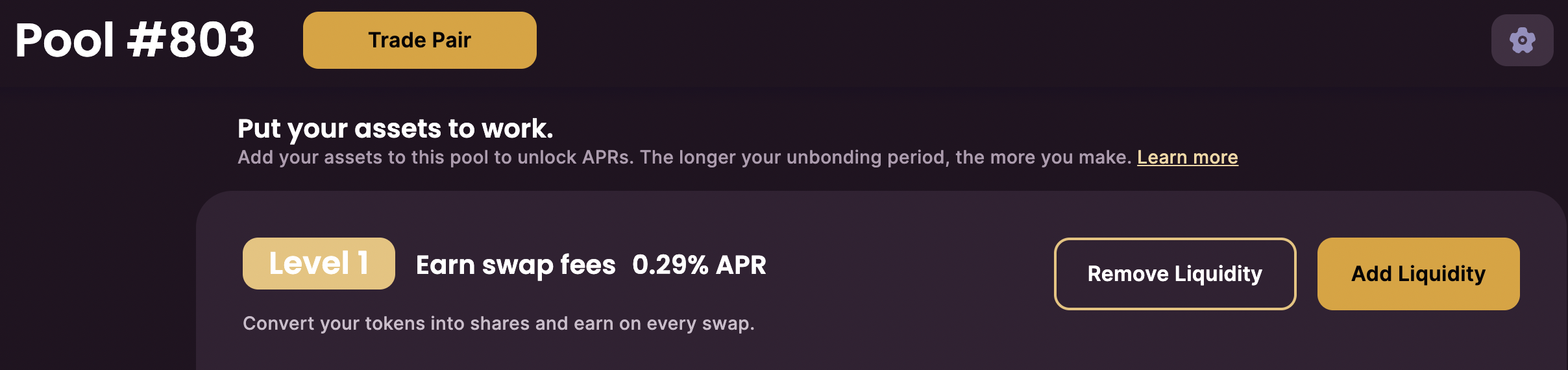
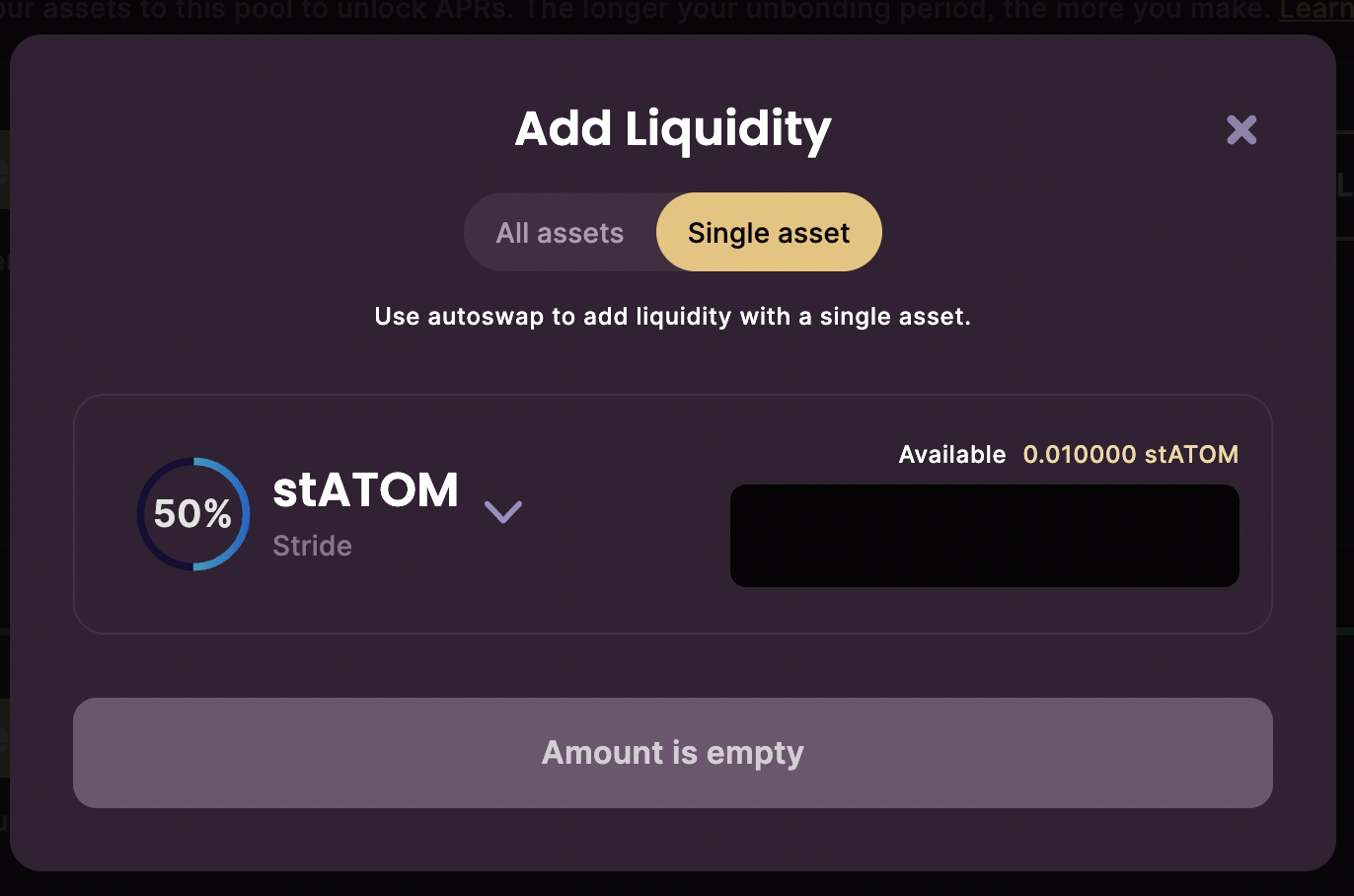
- Enter the amount you want to add and click “ADD LIQUIDITY”
(Note: If you don’t have ATOM balance (stATOM only, like in this example) you can tick that “Automatically swap single asset” field and enter your stToken balance) - Approve this transaction and wait for the confirmation message on the screen.
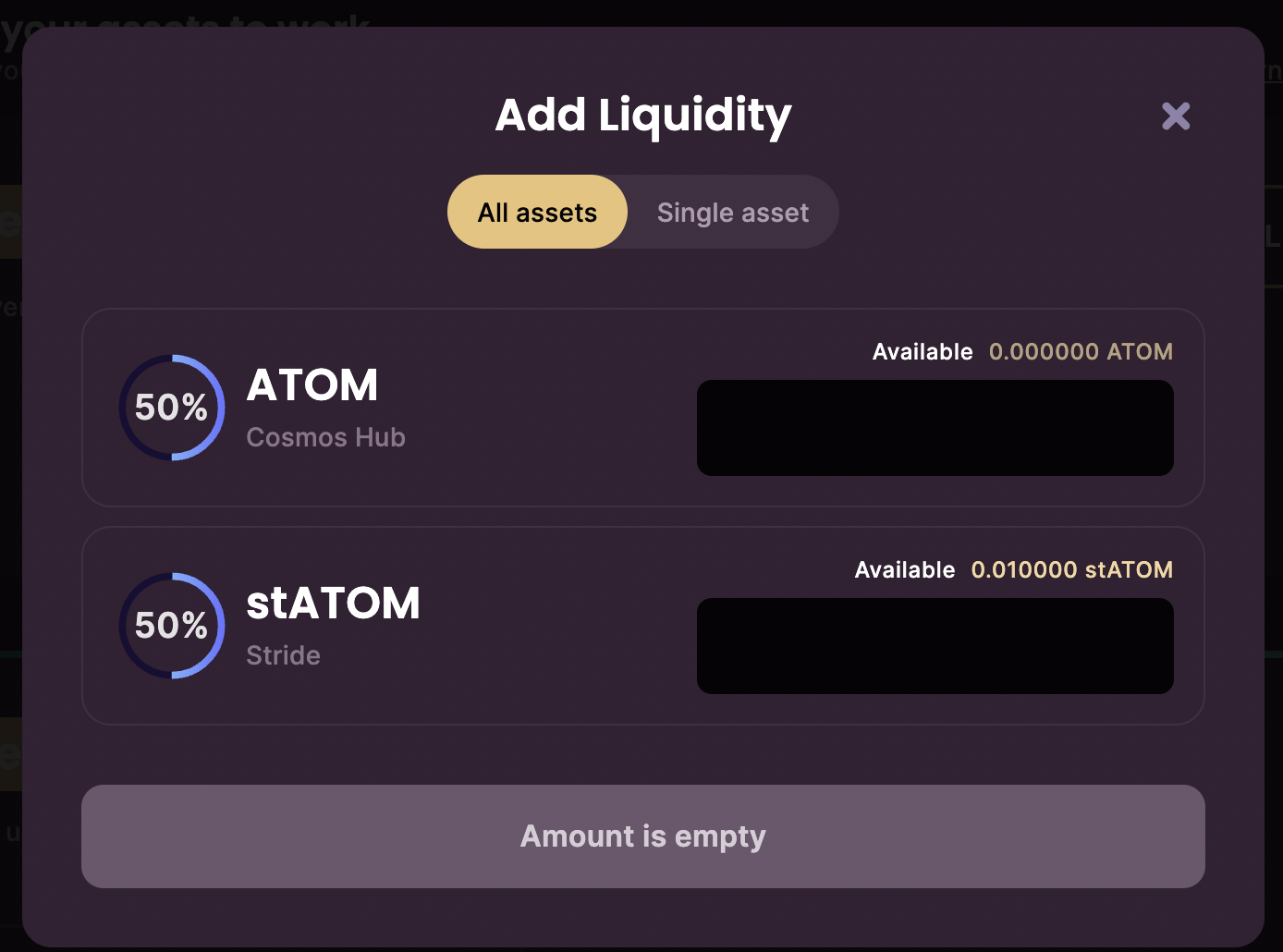
Note: There is no ATOM credit in this example. So here we can switch to using only the available token (stATOM).
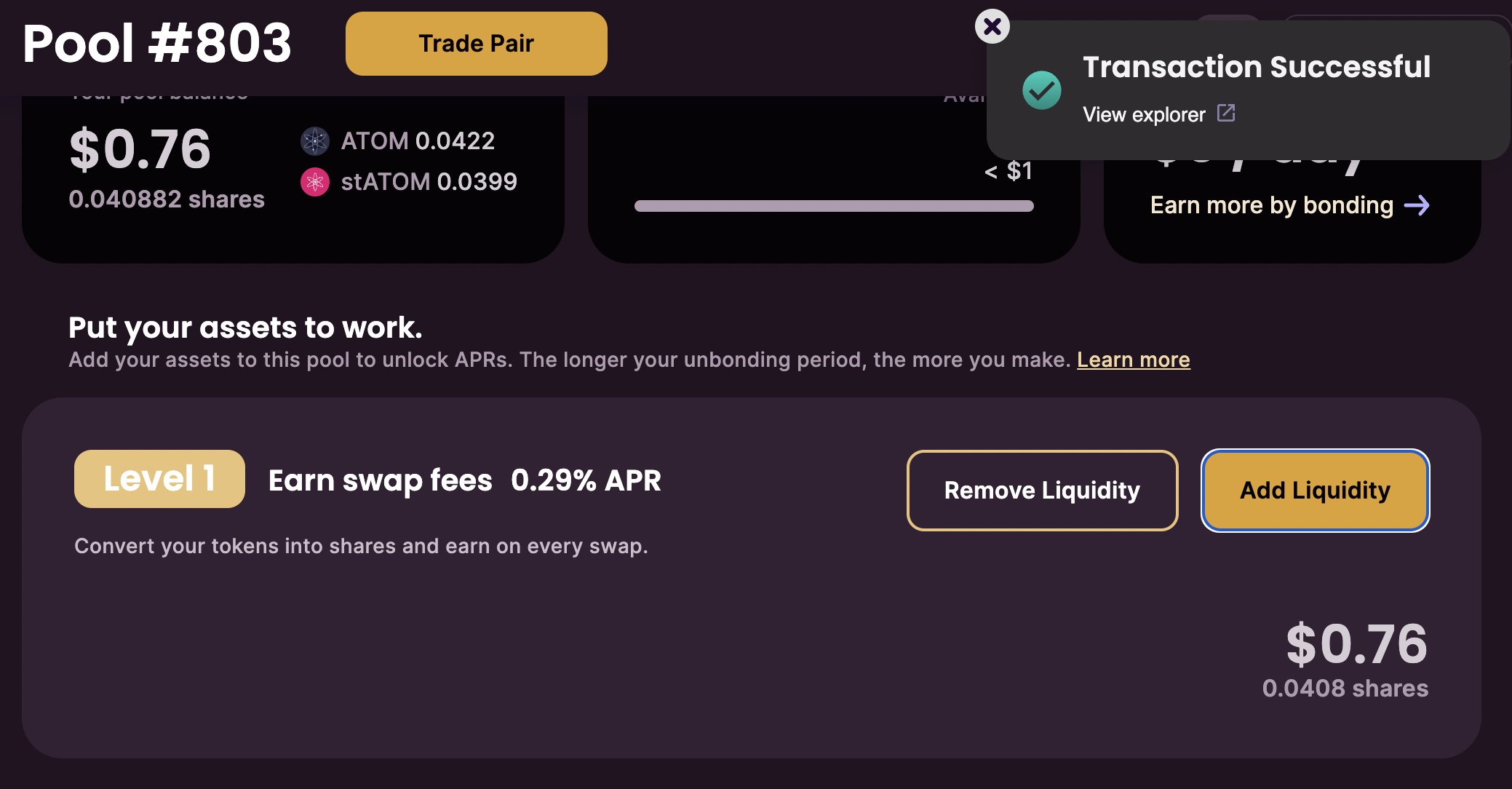
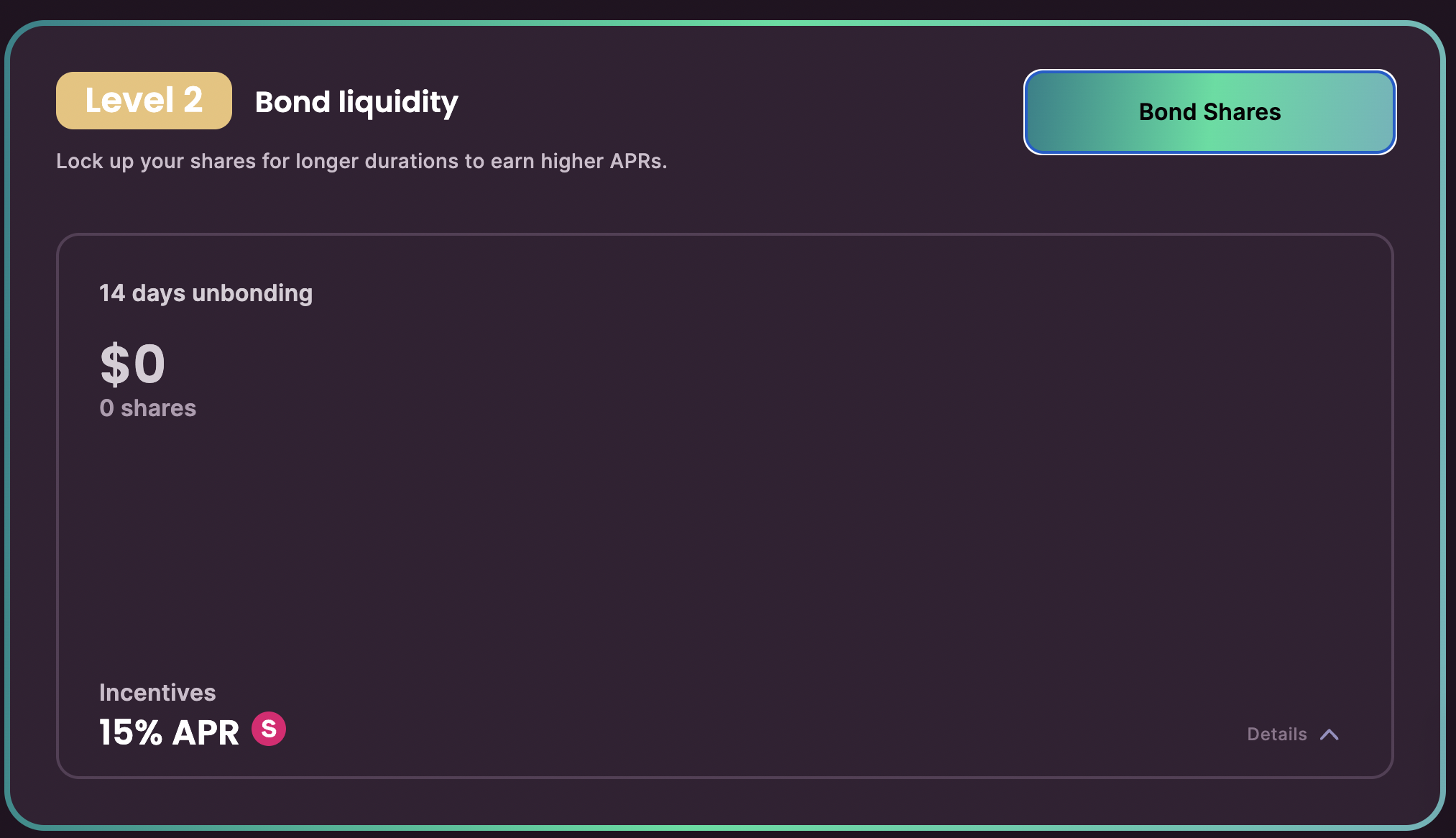
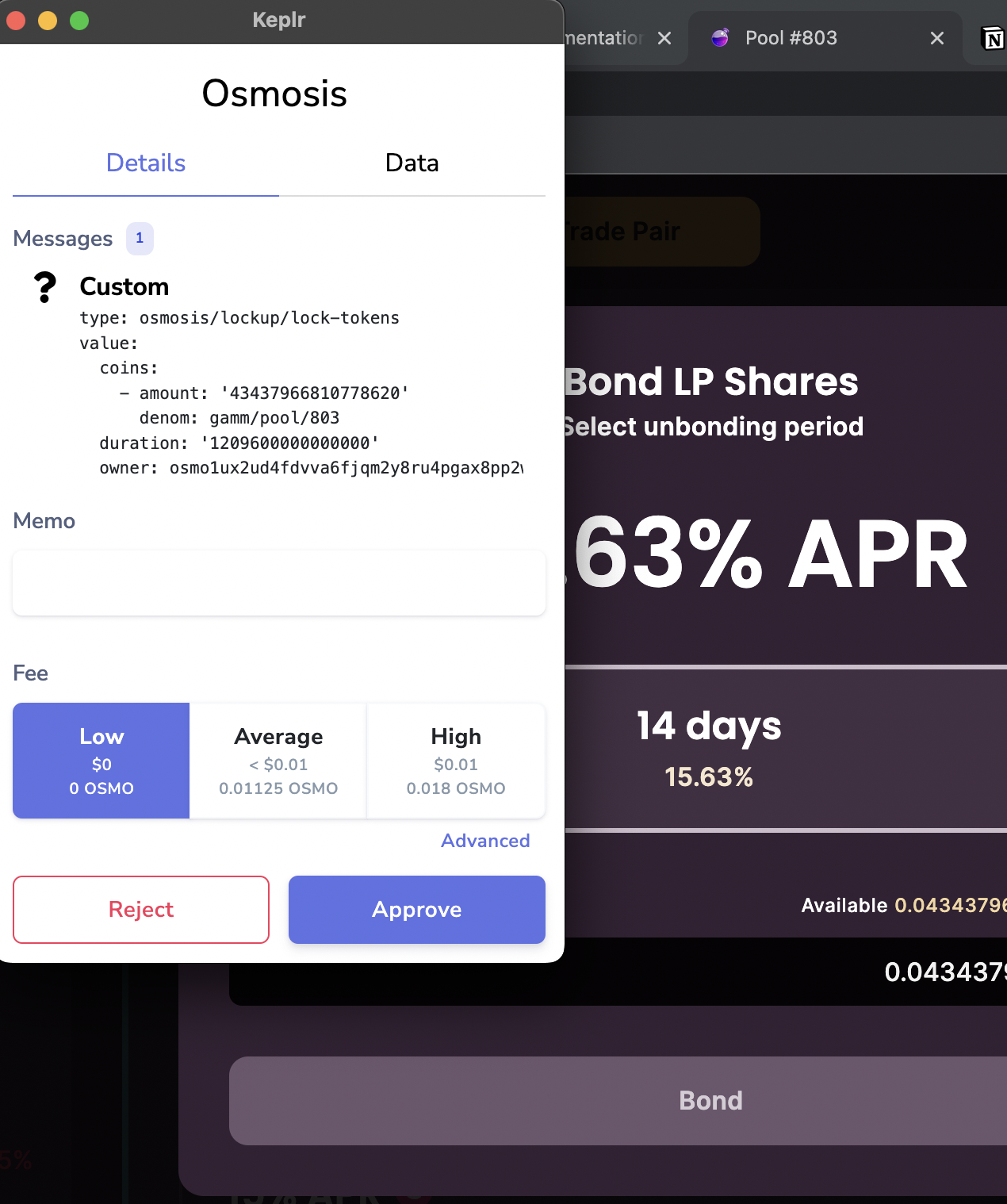
- Tie up your cash by clicking the green “Bond Stocks” Button.
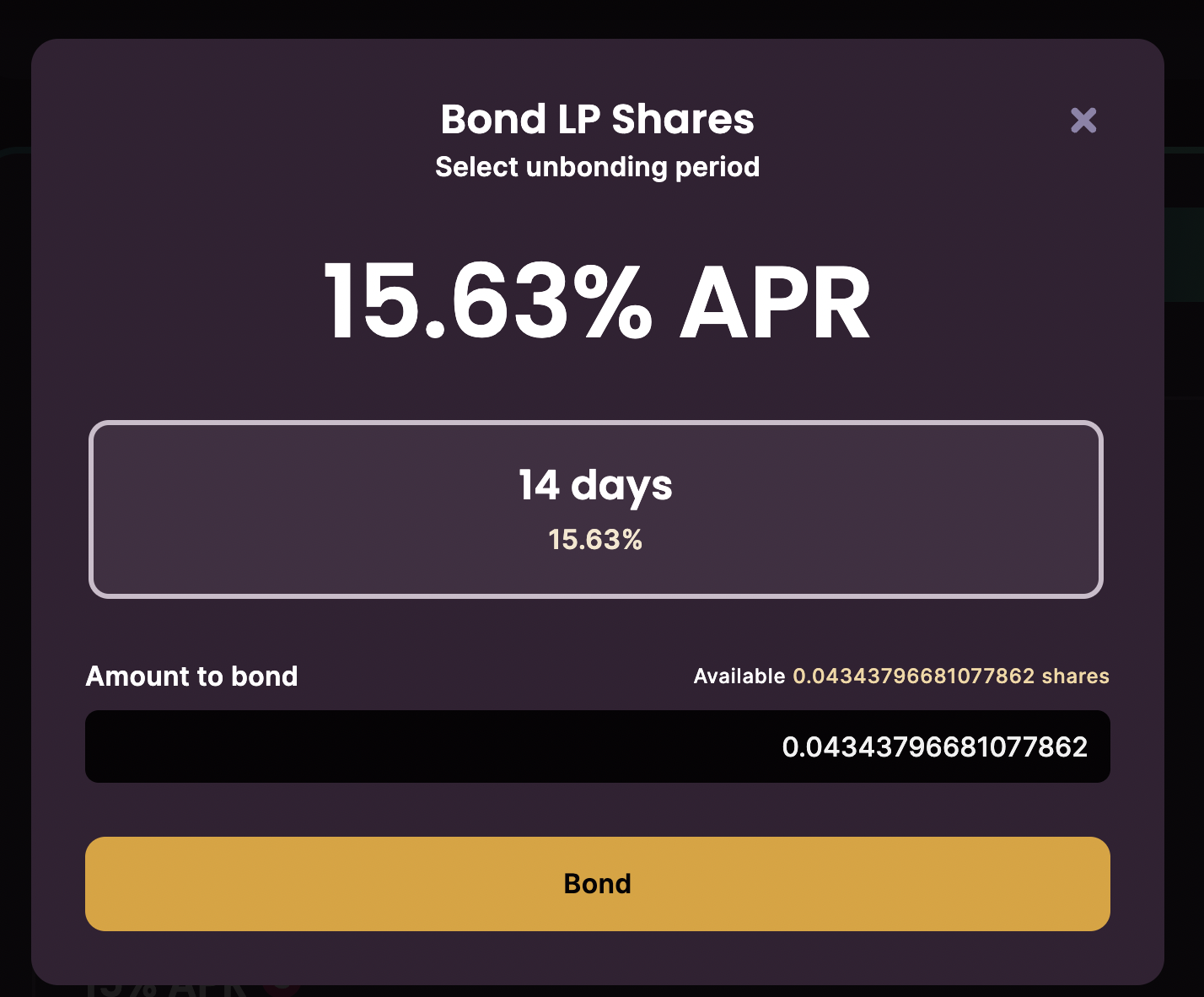
- Choose 14 days childbirth possibility.
- To enter the maximum amount, click on the available balance. To enter a different balance, enter it in the text box. Click binding to approve the transaction.
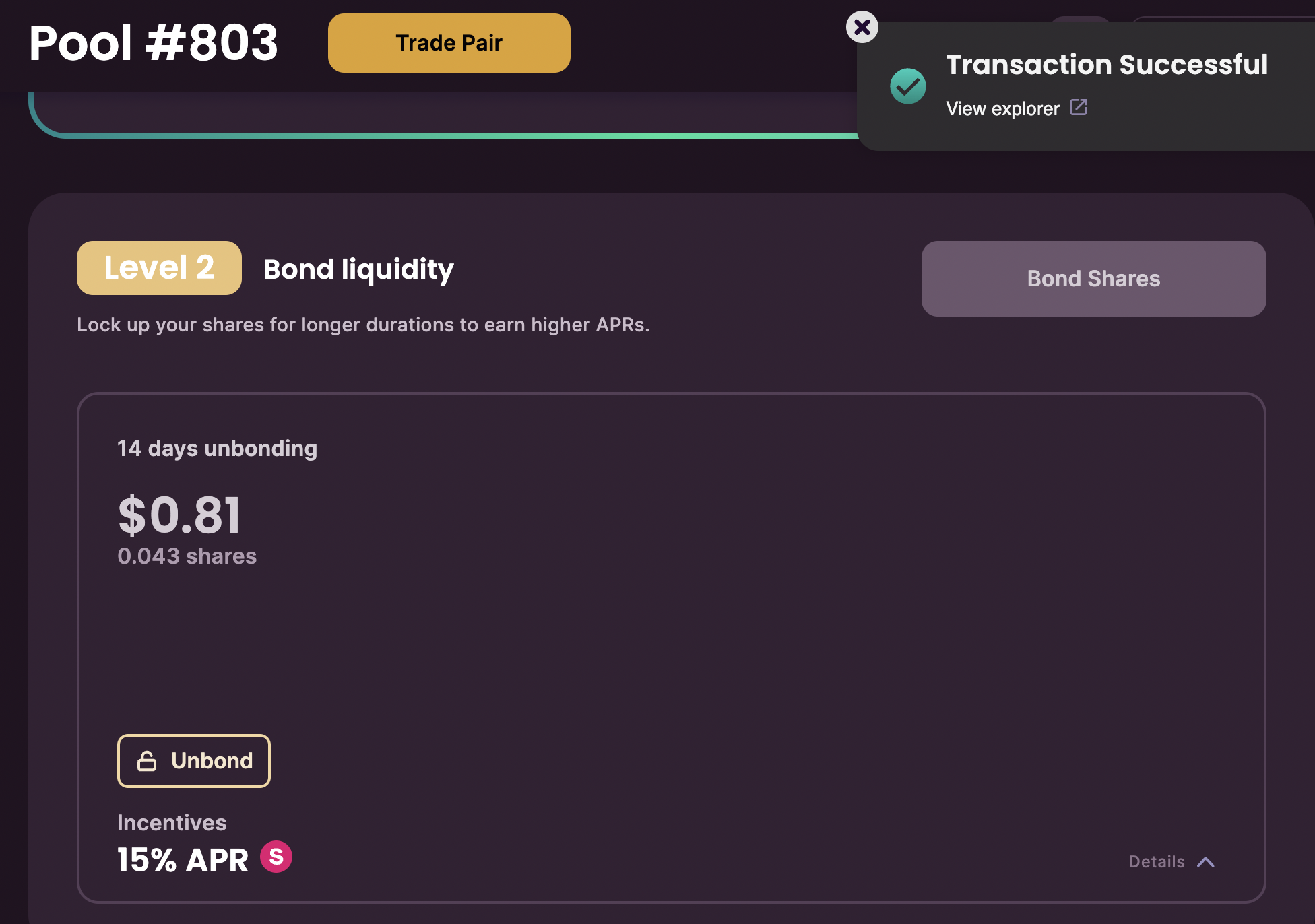
- Pool Incentive Rewards are paid once per day at epoch time at 17:15 UTC*.
Sources:
Learn Crypto Trading, Yield Farms, Income strategies and more at CrytoAnswers
https://nov.link/cryptoanswers
Comments are closed.